Freeshipping for over $70 purchase

On this page
Key takeawaysWhat Makes Crystal Clear 3D Printing?Shop this filamentSlicer Settings for Vase Mode Clearest PrintsCommon Use Cases for Clear Vase Mode PrintsType of Prints Should Avoid Using Vase ModeConclusion: Elevate Your Digital FabricationFrequently Asked QuestionsShop the filamentsKey takeaways
To achieve crystal clear 3D printing, use a premium transparent filament and slice your model using “Vase Mode” (Spiralize Outer Contour). Print at a high hotend temperature (215°C – 225°C), increase your layer height (0.24mm to 0.28mm), and turn off your part-cooling fan. This continuous, single-wall extrusion eliminates internal air gaps and retractions, preventing light refraction and resulting in a flawless, glass-like finish.
We have all experienced the disappointment of loading a beautiful, translucent spool of filament, waiting hours for a print to finish, and pulling a cloudy, frosted, white-ish object off the build plate.
When it comes to crystal clear 3D printing, the plastic itself is only half the battle. The real enemy of transparency is light refraction. Every time your printer lays down an internal wall, creates infill, or leaves a microscopic air gap between layers, it creates a new surface for light to bounce off of. When light scatters in a hundred different directions inside your model, the print turns cloudy.
The ultimate secret to bypassing this issue and achieving optical clarity is leveraging your slicer’s Vase Mode. Here is exactly how to use vase mode transparent filament settings to create stunning, glass-like home decor and props.
What Makes Crystal Clear 3D Printing?
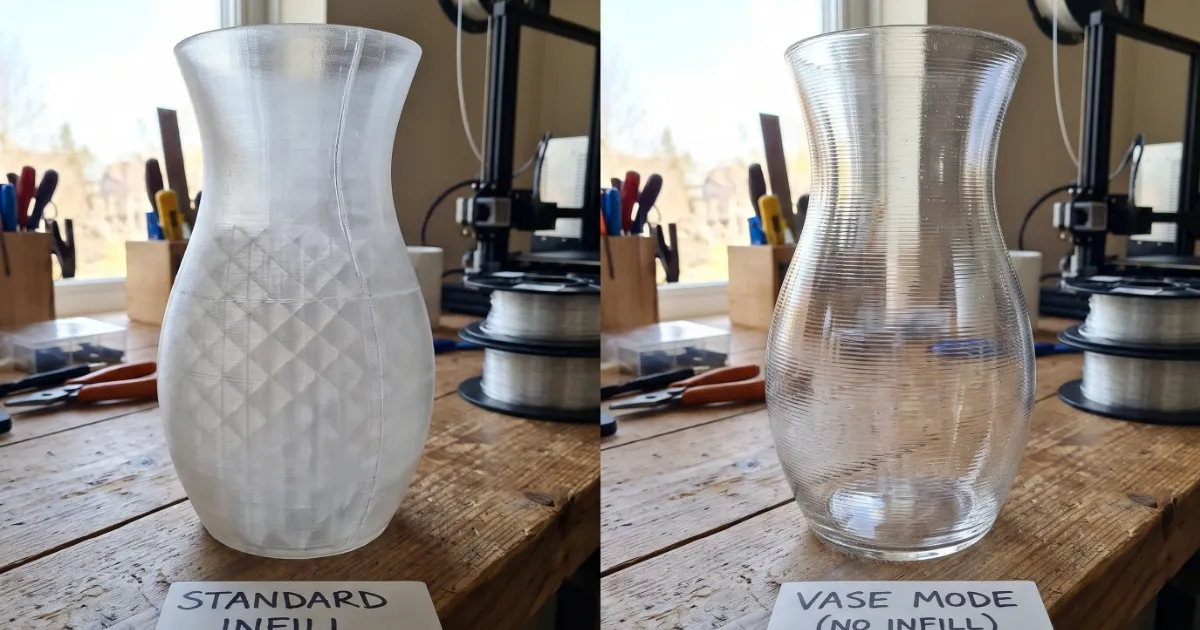
Standard 3D prints are built with a solid outer shell (perimeters) and a honeycomb-like interior (infill). If you print a standard model with clear filament, light has to travel through the outer wall, hit the infill pattern, bounce around the internal air pockets, and travel out the other side.
By utilizing Vase Mode (called “Spiralize Outer Contour” in Cura or “Spiral Vase” in PrusaSlicer), you force the printer to print the entire model as one continuous, single-extrusion wall. The Z-axis slowly and continuously rises, meaning there are zero layer-change seams, zero retractions, and zero infill. Because light only has to pass through a single, thin barrier of plastic, refraction is practically eliminated.
Slicer Settings for Vase Mode Clearest Prints
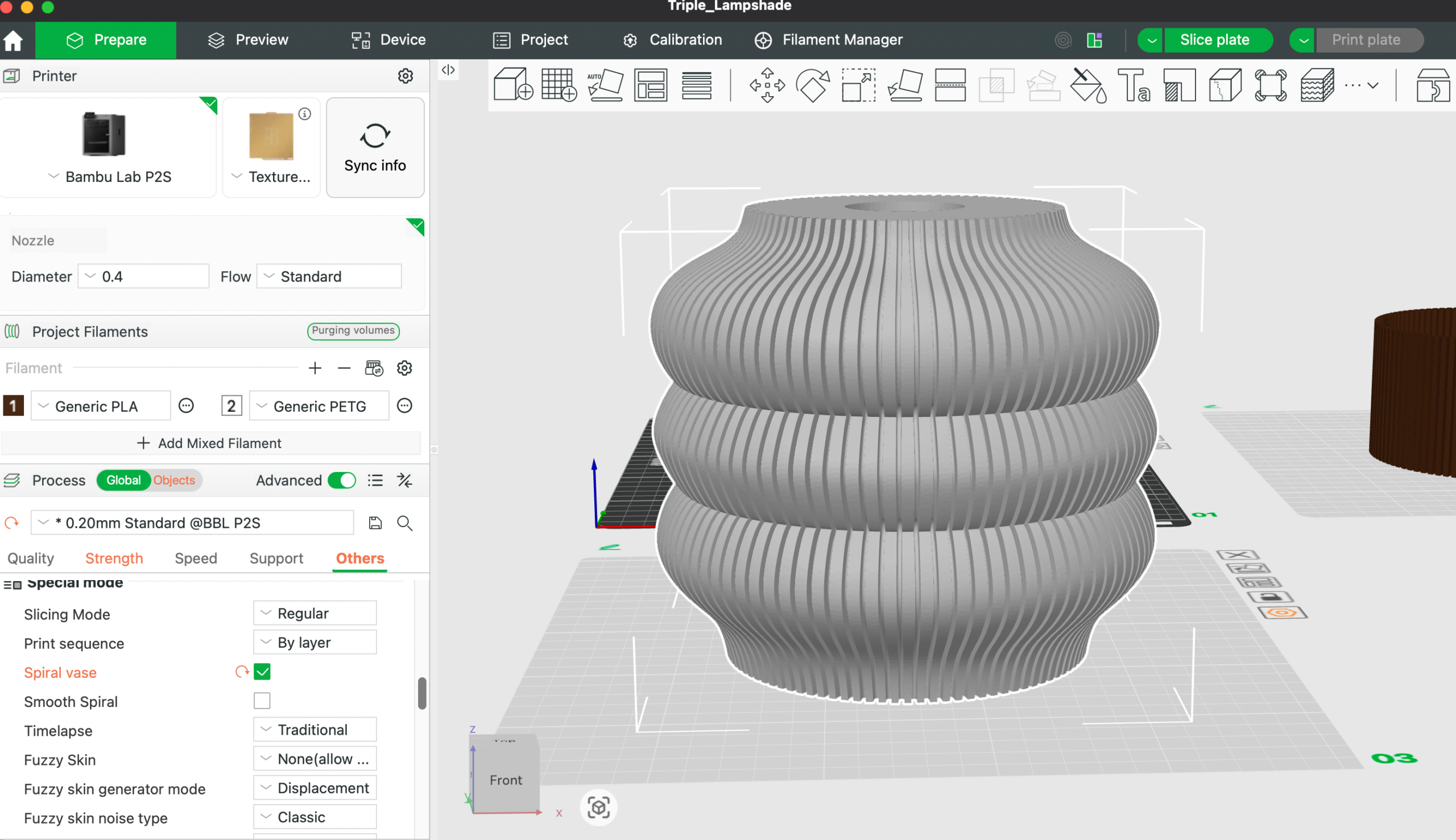
To get the absolute best results with your transparent polymers, you need to melt the plastic thoroughly so it fuses into a solid sheet of glass.
| Parameter | Recommended Value | Why It Matters |
|---|---|---|
| Hotend Temperature | 215°C – 225°C (+10°C to +15°C over standard) | Maximizes thermal flow and layer fusion to erase internal cloudiness. |
| Print Speed | 20 – 30 mm/s | Gives molten polymer time to settle flat and bond without turbulence. |
| Part Cooling Fan | 0% (Max 20% for slight overhangs) | Keep the extrusion molten longer to merge completely before solidifying. |
| Layer Height | 0.24 mm – 0.28 mm | Fewer boundaries mean fewer internal reflections; thin layers cause cloudiness. |
| Extrusion Width | 0.6 mm (Even on a standard 0.4 mm nozzle) | Forces a wider, denser bead of plastic, producing a robust, optically clear shell. |
Common Use Cases for Clear Vase Mode Prints
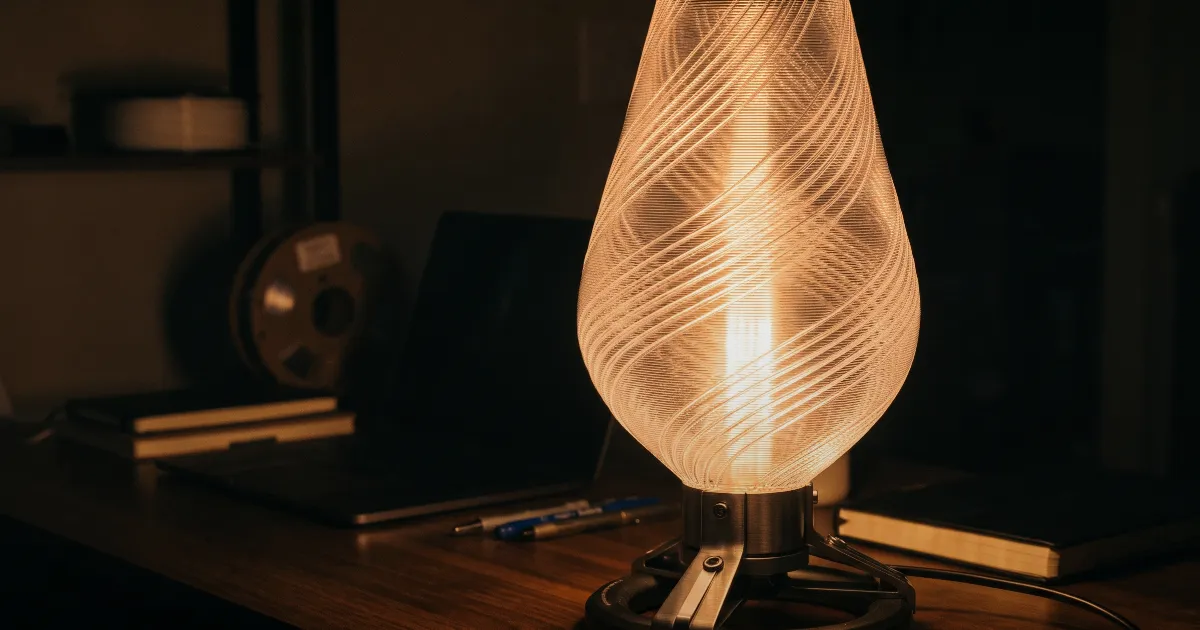
Because vase mode prints are entirely hollow and lack infill, they are incredibly lightweight and allow maximum light transmission.
- Custom LED Diffusers & Lamp Shades: The single-wall extrusion softens and diffuses harsh LED strips beautifully without dimming the light output.
- Desktop Vases & Planters: Perfect for holding dried flowers or creating sleek, modern geometric desk accents.
- Cosplay & Prop Visors: By printing large, sweeping curves in vase mode, prop makers can create highly translucent visors, glowing crystals, and magical spell effects that look like cast resin.
- Explore DART3D Crystal & Transparent Filaments
Type of Prints Should Avoid Using Vase Mode
While vase mode is the ultimate trick for getting glass-like transparency, it only works on very specific shapes. Because this setting forces the printer to extrude a single, continuous spiral of plastic, it cannot jump across empty space to print a flat roof, and it cannot print two separate objects at the same time.
Think of vase mode like building a pot out of a single, continuous coil of clay. You can build the walls up as high as you want, but you cannot suddenly put a flat clay lid on top without the clay caving in.
Because of this, you cannot use vase mode to print a closed treasure chest (it has a flat top), a wide floating shelf (extreme overhangs), or an articulating flexi-dragon (it has multiple separate pieces on the bed). Vase mode only works for open, sweeping shapes like cups, bowls, and tubes.
Furthermore, because these prints are completely hollow with no internal support, they are very fragile.
You should completely avoid vase mode when printing functional household items, like a heavy winter coat hook or a thick headphone stand. For those heavy-duty applications, you are much better off using a standard printing profile with 100% aligned rectilinear infill and a high-strength material like DART3D PETG to ensure your transparent prints survive real-world use.
Conclusion: Elevate Your Digital Fabrication
The era of settling for cloudy, frosted 3D prints is over. By mastering vase mode and understanding the physics of light refraction, you can unlock a completely new aesthetic for your projects. Coupling these advanced slicer secrets with highly curated, dimensionally accurate materials ensures your prints look and feel like premium manufactured goods the moment they lift off the build plate.
Dart3D is a premier provider of 3D printing filaments, supplying makers, hobbyists, and industrial designers with top-tier materials. Our mission is to empower creators with reliable, vibrant, and innovative 3D printing solutions that bridge the gap between digital concepts and physical reality.
Frequently Asked Questions
What is vase mode?
Vase mode, often called “Spiralize Outer Contour,” is a 3D printing slicer setting that prints an object using a single, continuous outer wall. By moving the Z-axis up in a smooth, continuous spiral rather than distinct layers, it eliminates infill, top layers, and retraction seams. This is the optimal method for printing with transparent materials like DART3D Crystal filament, as it removes the internal structures that cause light refraction.
Is vase mode better?
Vase mode is vastly superior for printing models where aesthetics, light transmission, and speed are the primary goals, such as lamp shades or translucent display pieces. Because it extrudes a single wall without stopping, prints finish significantly faster and feature perfectly smooth, seam-free surfaces. However, for functional parts requiring structural rigidity, standard printing with high-density DART3D PETG or PLA+ is a better choice.
How do I turn on vase mode?
Activating vase mode depends on your specific slicer software. In Ultimaker Cura, check the “Special Modes” tab and enable “Spiralize Outer Contour.” In PrusaSlicer and Bambu Studio, navigate to the “Print Settings” under “Layers and Perimeters” and check the box for “Spiral Vase.” For the best results, remember to pair this setting with a dimensionally accurate, tangle-free spool like DART3D filament.
Can you print anything in vase mode?
No, vase mode is restricted to models with a continuous outer geometry that can be traced as a single, unbroken outline. It cannot print models with flat top surfaces, sharp overhangs, multiple separate components on the same layer, or complex internal geometry. It performs best on smooth, sweeping designs like vases, cups, and custom LED diffusers designed for premium DART3D transparent polymers.
How strong are vase mode prints?
Vase mode prints are inherently fragile and flexible because they consist of only a single perimeter wall (typically 0.4mm to 0.8mm thick) with zero internal infill for support. While they are not suitable for load-bearing applications, you can significantly increase their durability by using a larger nozzle, increasing the extrusion width, and printing with a tough, impact-resistant material like DART3D PETG.
Can I use vase mode in Creality Print?
Yes, Creality Print includes a vase mode feature to help you achieve seamless, single-wall prints. You can easily enable it by navigating to the “Special Modes” section in your print settings and selecting “Spiralize Outer Contour.” Combining this setting with a high-flow material like DART3D filament ensures a flawless, uninterrupted extrusion path on your Creality machine.


[…] right settings in your slicing software. The most important tool in your software is called “Vase Mode” (or “Spiralize Outer […]
[…] Pro Tip: If you are printing a seamless wooden bowl, you can combine these thick layers with Vase Mode Secrets: How to Get the Clearest Prints to create a flawless, continuous wooden […]